Video
Image to video with AI
Bring a still picture to life. Your image becomes the first frame of a short video, and you describe how it should move. The price shows before you start.
Reading this page is free. Every generation shows its price before you start. See pricing.
Start from your own picture
Pick any image you like: a photo, an illustration, or a picture you made in E-Labs image generation. It is used as the first frame, and the video continues from it.
Some models also accept a last frame, so the clip travels between two pictures. The settings for the model you pick show which inputs it takes. Veo 3.1, Wan, Seedance and Hailuo can start from a still image.
Keep a character consistent
If you need the same person or character across several clips, use the reference image mode in the same Video menu instead of a single first frame.
Four steps
- Open Animate image. The button opens Studio on the image-to-video tool. Sign in if asked.
- Add your picture. Your image becomes the first frame. On models that support it you can add a last frame too.
- Describe the motion. Say what should move and how the camera behaves. The picture already shows the subject, so keep the prompt about movement.
- Check the price and generate. The price shows before you start. Results save to your private Gallery.
One-photo effects to try
Each preset takes one photo and applies a single move. Hover or tap a card to play it.
 Video
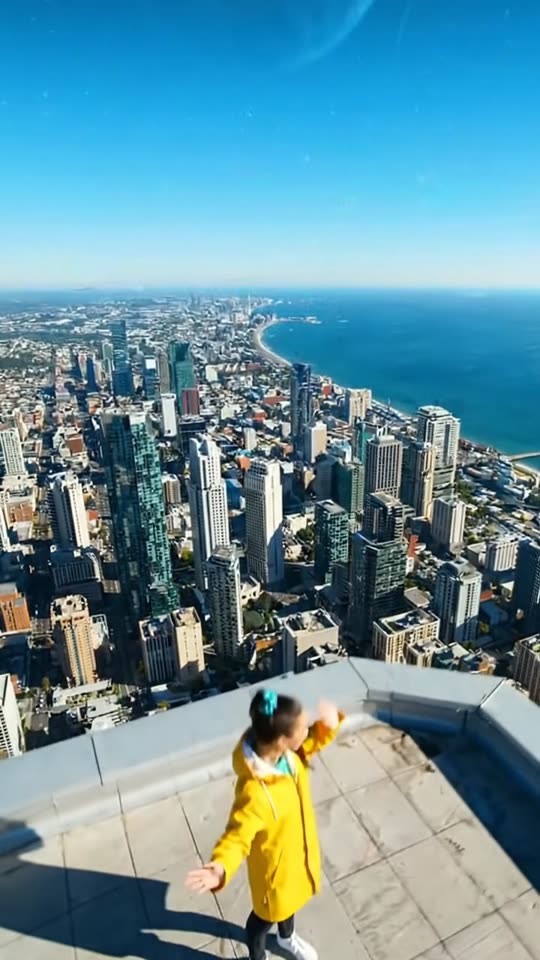
Planet Pull-Back
The camera pulls up and back from the street to the whole planet.
 Video
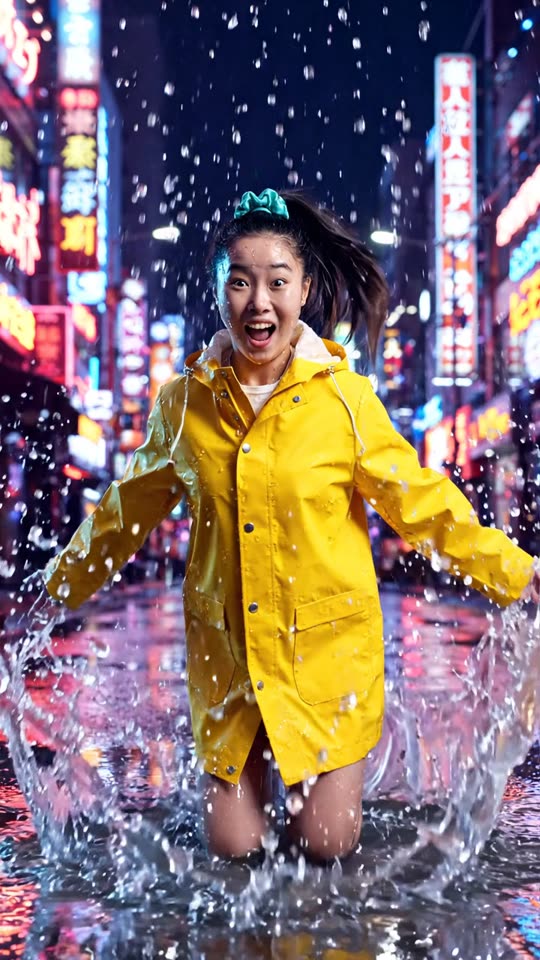
Freeze Orbit
The moment freezes while the camera orbits around the person.
 Video
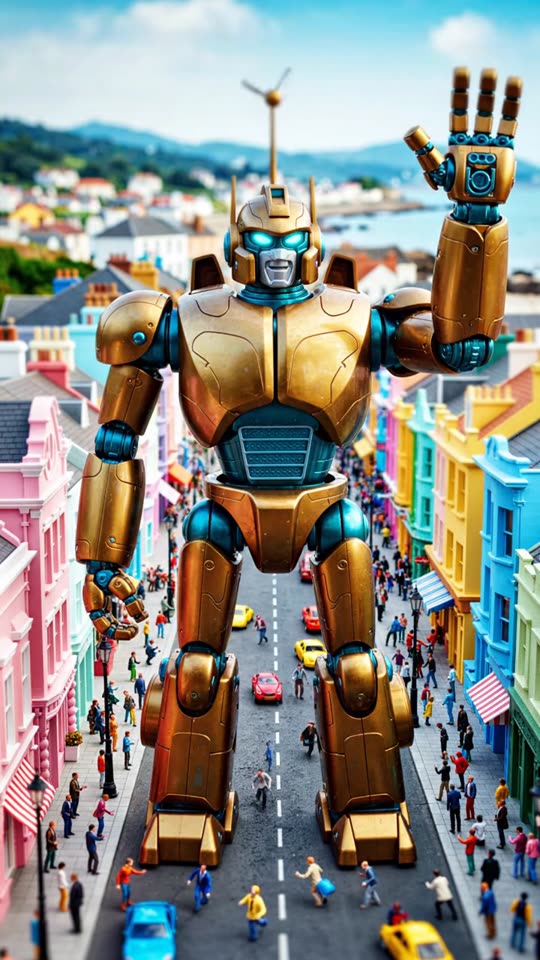
Tiny World
The scene becomes a tilt-shift miniature with tiny moving people.
 Video
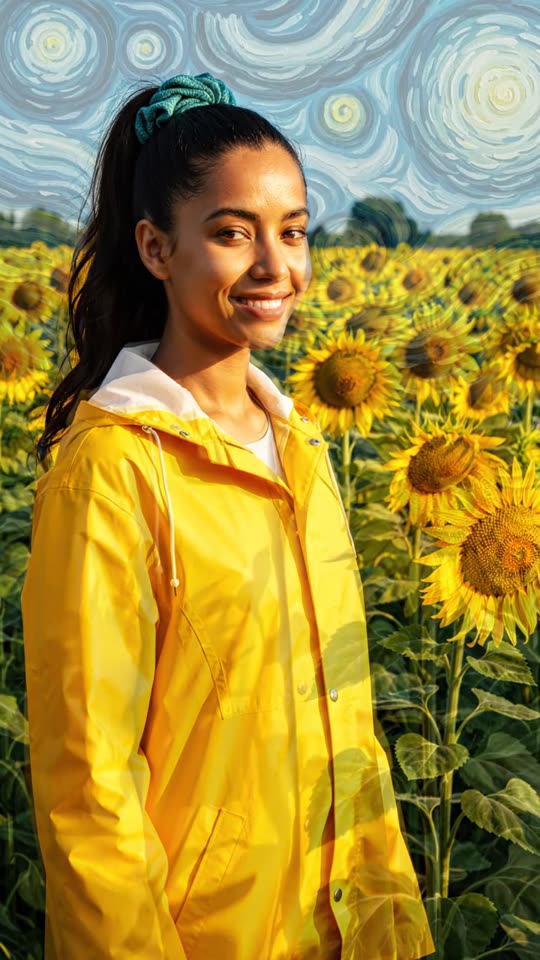
Paint Melt
The photo melts into oil paint, then settles into a moving painting.
Scenes that come with sound
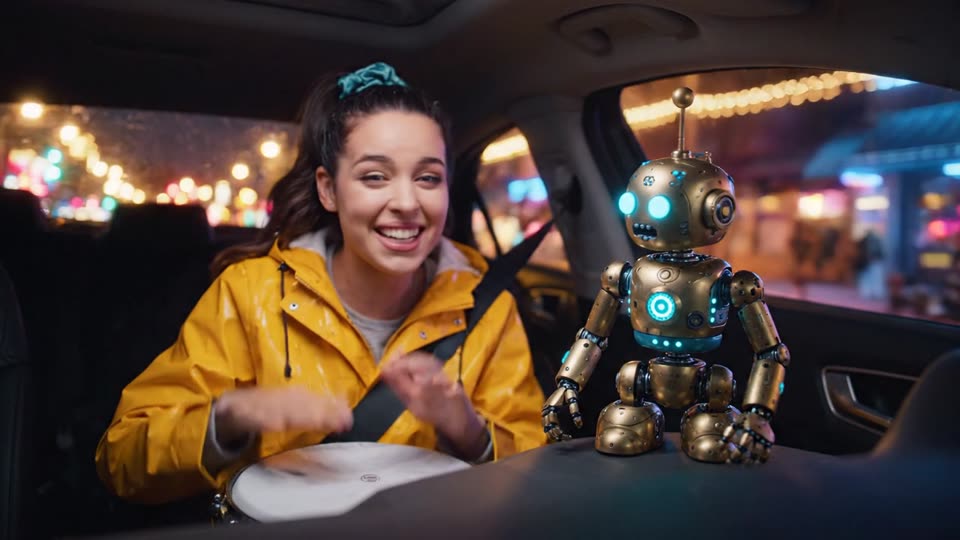
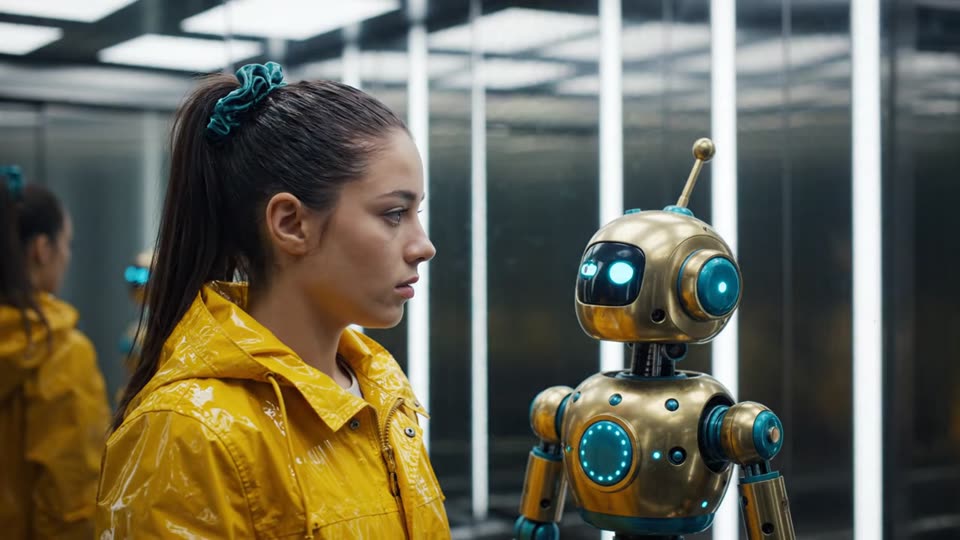
These wide presets also make audio. Open a preset to see how it starts.
 Video
 Video
 Video
Keep going
Make your picture move
Animate an imageQuestions
How do I turn a picture into a video?
Open the image-to-video tool in Studio, add your picture as the first frame, describe the motion, check the price and generate.
Can I set the last frame too?
On supported models, yes. The settings for the model you choose show whether it accepts a last frame.
How long are the clips?
It depends on the model. For example, Veo 3.1 Fast and Lite offer 4, 6 or 8 second clips. Each model page lists its lengths.
Will the video have sound?
Some models can add sound. Where a model offers it, an audio setting appears in Studio.
How do I keep the same character in several clips?
Use the reference image mode in the Video menu, which is made for keeping a character consistent across clips.
What does it cost?
Reading pages is free. The price for your exact settings shows before you start, and nothing is charged until you press generate. See pricing.
Where do my videos go?
They are saved privately to your account until you choose to publish them.